


Your chart, your logic: Custom indicators in the Exness Terminal, powered by Indie™

Every trader reads the market differently.
Some look for trend changes. Some track momentum. Some plan for potential volatility. Standard indicators can help with that. But sometimes, the tool you need is not already on the chart.
Now, you can build it yourself.
With custom indicators in the Exness Terminal, you can create your own technical indicators, apply your own logic, and customize the way market data appears on your charts. It’s a new way to shape your trading workspace around how you actually analyze the market.
You can write your indicator as a script, add it to a chart, test it on live and historical data, then save it for future use — all inside the Exness Terminal. Let’s take a closer look.
What are custom indicators?
Custom indicators are technical analysis tools built around your own trading logic.
Standard indicators use predefined calculations. For example, a Moving Average shows average price over a selected period. Relative Strength Index can help read momentum. MACD can help compare moving averages and identify possible changes in momentum.

Custom indicators let you go further. You can decide what the indicator should calculate, when it should show a signal, and how that information should appear on your chart.
The complexity and outcomes are really up to you. You could create an indicator that:
- Marks specific price levels.
- Combines several conditions into one signal.
- Adds labels to your chart.
- Highlights setups that match your own analysis.
- Shows only the data you want to see.
That flexibility matters because trading analysis is personal. Two traders can look at the same chart and focus on completely different things. Custom indicators help you build tools around your own process, instead of adjusting your process around the tools already available.
Why custom indicators matter for Exness traders
Exness Terminal is built for fast, clear, browser-based trading. You can analyze markets, manage positions, and trade from one workspace without installing extra software.
Custom indicators add another layer of control.
They help you make your chart setup more specific, more readable, and easier to repeat. Instead of checking several conditions manually, you can build an indicator that brings them together in one place. Instead of relying only on default visuals, you can create signals, levels, and labels that match the way you read the market.
This can help you:
- Keep your analysis more structured.
- Reduce chart clutter by showing only relevant data.
- Reuse the same setup more easily.
- Review your logic on live and historical data.
- Build a workspace that fits your trading style.
It’s important to remember that custom indicators do not replace your own judgement or risk management. They simply give you a clearer way to work with the information that matters to you.
How custom indicators work in the Exness Terminal
Custom indicators in the Exness Terminal are created using Indie, a simple Python-based language developed by TakeProfit specifically for traders.

You don’t need to leave the terminal to create your indicator. You can write your script, add it to the chart, review how it behaves, and save it for later use.
The workflow is simple:
- Open the Exness Terminal.
- Go to the Indicators tab.
- Select + Create indicator.
- Write your indicator using Indie.
- Add it to a chart.
- Review it on live and historical data.
- Save it and reuse it in one click.
This keeps your analysis and trading setup in one place. You can build the tool, test how it appears on the chart, and keep refining it as your trading process evolves.
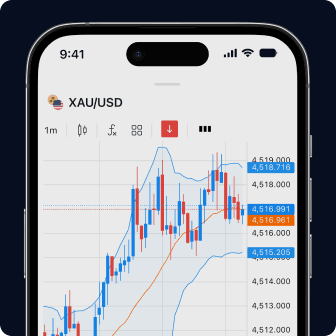
Every tool you need, all in one place
Chart, execute, and manage your funds all on one user-friendly screen.
Which accounts and platforms support custom indicators?
Custom indicators are available only in the Exness Terminal.
Within the Exness Terminal, you can use custom indicators when trading on MT5 and Exness platform accounts. They are not supported on the Exness Trade app.
If you want to compare desktop, web, and mobile trading options, visit our trading platforms overview.
Custom indicators vs built-in indicators
Built-in indicators and custom indicators can work together. You do not need to choose one over the other.
Built-in indicators are useful when you want established tools that are ready to apply. Custom indicators are useful when you want to build something around your own conditions, visuals, or workflow.
Built-in indicators | Custom indicators |
Ready to use | Built around your own logic |
Based on predefined calculations | Based on conditions you choose |
Good for general analysis | Good for specific setups |
Quick to apply | More flexible to customize |
Useful for common chart reading | Useful for personalized workflows |
A simple way to think about it: built-in indicators help you start faster. Custom indicators help you go deeper.
Build the chart setup that fits your analysis
Custom indicators give you more control over how you read the market in the Exness Terminal.
You can move beyond default tools, build indicators around your own logic, and create chart visuals that match the way you trade. Whether you want signals, labels, levels, or combined conditions, custom indicators help you make your workspace more personal and more practical.

Give it a try to test your setup and your new personally crafted indicator in live market conditions.
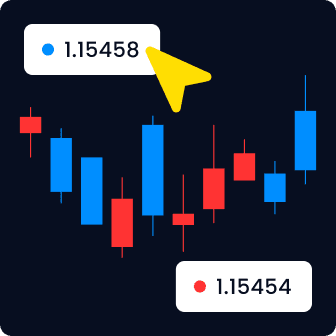
Never miss a trade
React faster to market moves with one-click trading.
FAQs
What are custom indicators?
Custom indicators are technical analysis tools that traders create using their own logic. They can help analyze price movements, identify trends, mark levels, add signals, or show chart information in a more personalized way.
Which custom indicators are available in Exness Terminal?
Exness Terminal includes built-in indicators such as Moving Average, Relative Strength Index, MACD, and others. You can also create your own custom indicators using Indie, a Python-based language developed by TakeProfit for traders.
How do I add custom indicators to my chart?
Open Exness Terminal, go to the Indicators tab, and select Create indicator. Write your indicator using Indie, add it to a chart, review it on live and historical data, then save it for future use.
Are custom indicators free to use?
Yes. Custom indicators are free to use in the Exness Terminal.
Can I use custom indicators on MT4 and MT5?
Custom indicators are available only in the Exness Terminal. Within the Terminal, you can use them when trading on MT5 and Exness platform accounts.
Can custom indicators guarantee profitable trades?
No. Custom indicators cannot guarantee profitable trades.
They help you analyze market data in a way that fits your process. They can make patterns, conditions, and chart information easier to see. But they do not remove market risk or replace your own decision-making.
Markets can move quickly, and trading always involves risk. Use custom indicators as part of a broader approach that includes risk management, market context, and careful analysis.
Custom Indicators are created based on a user-provided code. Exness does not review, verify, or endorse any Custom Indicators.
Custom Indicators are provided for informational and visualisation purposes only and do not constitute investment advice or recommendations.
Clients assume full responsibility for all the risks and outcomes arising from their use and from any trading decisions based on them.
Exness accepts no liability for losses, damages, or technical errors that may result.
Past performance is not indicative of future results.
For important information on Custom Indicators, refer to the Client Agreement available on the Legal Page.
This is not investment advice. Past performance is not an indication of future results. Your capital is at risk, please trade responsibly.